
Introduction
Publishing a new blog post or adding a product to an online store is only the beginning of the SEO process. After publishing, search engines need to discover the URL, crawl the page, process its content, and decide whether it should appear in search results.
For website owners who publish content regularly, performing these steps manually for every URL can become time-consuming. This is why automatic sitemap generation, Google Search Console, and other supported discovery methods are important parts of a modern SEO workflow.
If you use WordPress or Shopify, you can automate several parts of this process without manually submitting every new URL. WordPress can generate XML sitemaps, while Shopify automatically maintains a sitemap containing its important store URLs.
However, automatic URL discovery does not guarantee instant indexing. Google evaluates individual pages before including them in its index, and the time required can vary.
In this guide, you'll learn how to configure WordPress Instant Indexing workflows, improve Shopify Google Indexing, automate sitemap updates with an Automated Sitemap Indexer, and troubleshoot pages that are not appearing in Google Search.
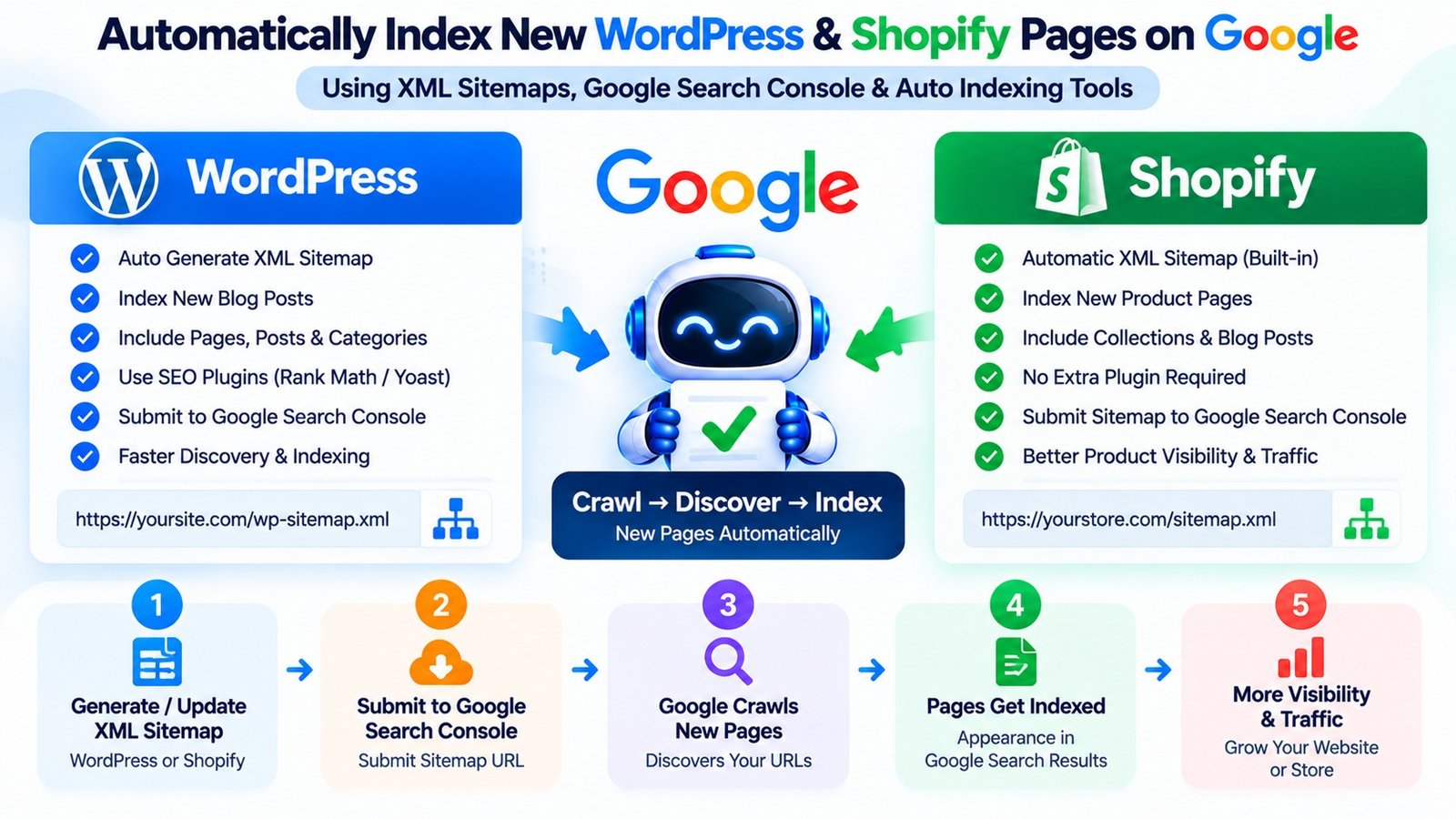
📷 Automatically Index New WordPress & Shopify Pages on Google Using XML Sitemaps, Google Search Console & Auto Indexing Tools
What Is Automatic Google Indexing?
Automatic Google indexing generally refers to a workflow that helps search engines discover newly published or updated pages without requiring the website owner to manually submit each URL.
The process usually involves several activities:
- Automatically generating or updating XML sitemaps.
- Keeping important pages connected through internal links.
- Making pages accessible to search engine crawlers.
- Providing accurate canonical and indexing signals.
- Monitoring indexing status in Google Search Console.
- Requesting recrawling for selected pages when appropriate.
It is important to understand the difference between crawling and indexing.
Crawling happens when Googlebot visits a page and retrieves its content. Indexing involves processing that content and potentially adding the page to Google's search index.
A page can be crawled without being indexed. Similarly, a URL can appear in a sitemap without ever being selected for indexing.
Google explains these processes in its official Page Indexing Report documentation.
How WordPress Instant Indexing Works
WordPress provides several ways to help search engines discover new content. Its built-in sitemap functionality can automatically list public URLs, and SEO plugins can provide additional sitemap management and indexing controls.
When you publish a blog post, WordPress updates its content data, and the sitemap can reflect the new URL. Google may discover the URL through the sitemap, internal links, or other sources.
This means you do not need to manually submit every new post just to make it discoverable.
Step 1: Enable Your WordPress XML Sitemap
Start by checking whether your website already has an XML sitemap.
WordPress installations commonly provide a built-in sitemap at:
https://example.com/wp-sitemap.xmlIf you're using Rank Math SEO, the sitemap index is commonly available at:
https://example.com/sitemap_index.xmlYoast SEO also generates an XML sitemap index on supported configurations.
Replace example.com with your actual domain and open the relevant URL in your browser (or inspect it using our free XML Sitemap URL Extractor).
Check that:
- The sitemap loads successfully.
- Published public posts are included where appropriate.
- Important pages are not unintentionally excluded.
- The sitemap contains preferred canonical URLs.
- Broken URLs and redirects are not unnecessarily included.
Use the sitemap generated by your existing configuration. You generally do not need multiple SEO plugins generating overlapping sitemaps.
Step 2: Configure Rank Math or Yoast SEO
If you're using Rank Math, open the WordPress dashboard and navigate to the sitemap settings.
Review the available settings for posts, pages, categories, and other public content types. Enable only the sections that should contain indexable URLs.
If you're using Yoast SEO, check its XML sitemap settings and verify that your important content types are included.
Also review each important page's indexing settings. A page marked noindex should not normally be included in the sitemap intended for search engines.
Remember that a sitemap helps Google discover URLs; it does not force Google to index them.
Step 3: Submit the Sitemap to Google Search Console
After confirming that the sitemap works, connect your website to Google Search Console if you have not already done so.
Follow these steps:
- Open Google Search Console.
- Select the correct website property.
- Open the Sitemaps report.
- Enter your sitemap path.
- Click Submit.
- Review the processing status and any reported errors.
For example, if your sitemap index is located at https://example.com/sitemap_index.xml, submit that address.
You normally only need to submit the sitemap initially and keep it updated. You do not need to submit the same sitemap manually every time you publish a new blog post.
Google can revisit a sitemap to discover new or updated URLs.
Official resource: Build and submit a sitemap.
Step 4: Improve Internal Linking
Sitemaps are useful, but internal links also help Google discover your content.
Whenever you publish a new article, link to it from relevant existing pages where it helps readers.
For example, a new article about technical SEO could receive internal links from existing guides about Google Search Console indexing fixes, XML sitemaps, and website crawlability.
Use descriptive anchor text and make sure important pages are accessible through the site's navigation or other crawlable links.
Avoid publishing large numbers of pages that have no meaningful internal links pointing to them.
Step 5: Use URL Inspection for Important Posts
Although sitemap automation handles discovery for many URLs, URL Inspection remains useful when an important post is not appearing in Google Search.
Open Search Console, enter the complete URL, and review the reported indexing status.
You can also use the live URL test to investigate current accessibility and technical problems.
If the page is eligible and you've fixed any identified issues, you can request indexing.
Google places quotas on individual requests, and repeatedly requesting indexing for an unchanged URL does not make it get crawled faster.
This is why sitemap automation is more practical for regular publishing, while URL Inspection is best used for selected URLs that need investigation.
Does WordPress Instant Indexing Require a Plugin?
No. You can use WordPress's sitemap functionality and Google Search Console without purchasing a separate instant indexing plugin.
Some plugins offer additional features such as URL monitoring, sitemap controls, and integrations with supported APIs. Their capabilities vary, so check the documentation before installing one.
Important: Understand the Google Indexing API
Some WordPress plugins advertise instant indexing by connecting to Google's Indexing API.
However, Google's Indexing API is intended for eligible job-posting pages and livestreaming video pages, not as a general-purpose indexing API for ordinary WordPress blog posts, service pages, or e-commerce products.
Do not assume that a plugin can legitimately force Google to index every URL simply because it connects to an API.
For regular WordPress content, focus on XML sitemaps, internal links, technical accessibility, and useful content.
Official reference: Google Indexing API documentation.
How Shopify Google Indexing Works
Shopify automatically generates an XML sitemap for your online store. The sitemap contains links to important store content, including products, collections, pages, and blog posts.
Shopify also updates its sitemap when you add new supported content.
This means most Shopify store owners do not need to create a sitemap manually or install a separate application simply to generate one.
Step 1: Find Your Shopify Sitemap
Open your Shopify store's primary domain and add /sitemap.xml to the end of the address.
For example:
https://example.com/sitemap.xmlYour actual address should use your store's primary domain.
The sitemap index links to additional sitemap files for different content types. Depending on your store, these can include product, collection, page, and blog content.
Open the sitemap and confirm that it loads correctly.
Step 2: Verify Your Shopify Store in Google Search Console
If you have not already verified your website, add your domain or URL-prefix property in Google Search Console and complete the ownership verification process.
Make sure you select the correct property when submitting your sitemap.
If your store uses multiple domains or international domains, review your primary-domain and redirect configuration so that Google can discover the preferred URLs.
Step 3: Submit the Shopify Sitemap
After verifying your store:
- Open Google Search Console.
- Select the appropriate property.
- Navigate to the Sitemaps report.
- Enter
sitemap.xmlin the submission field. - Submit the sitemap.
- Check the reported status and any errors.
Shopify automatically updates the sitemap when supported content is added or changed, so you generally do not need to resubmit it after every product launch.
Google can use the sitemap to discover your pages, but inclusion in search results is not guaranteed.
For platform-specific instructions, see Shopify's official sitemap guide.
Step 4: Optimize Shopify Product Pages
If your Shopify product pages are not appearing in Google, review the individual product pages as well as the sitemap.
Check that:
- The product page is publicly accessible.
- The product URL returns the expected response.
- The page is not unintentionally blocked from indexing (verify with a Google Indexability Checker).
- Canonical tags point to the intended URL.
- The product description provides useful information.
- Important products are linked from relevant collections.
- The page is included in the appropriate sitemap.
Avoid using identical manufacturer descriptions across every product if you can provide more useful, accurate details.
Unique specifications, sizing information, compatibility details, usage instructions, and clear product imagery can help customers understand the product and make informed purchasing decisions.
Step 5: Check Shopify Store Visibility
A store that is private or password-protected may prevent Google from accessing its content and sitemap.
Before investigating indexing delays, confirm that the public storefront is accessible and that the relevant pages can be visited without authentication.
If you've recently launched your store, allow time for Google to discover and evaluate the new URLs.
How to Index New Blog Posts Fast
If you're publishing regularly, use a consistent publishing workflow rather than manually submitting every article.
A practical workflow looks like this:
- Write and publish useful, original content.
- Confirm that the URL returns a successful response.
- Verify that the page is permitted to be indexed.
- Confirm that the preferred URL appears in the sitemap.
- Add relevant internal links.
- Check the page's canonical configuration.
- Monitor Search Console for indexing status.
- Request indexing for important pages when appropriate.
This approach works for both WordPress articles and Shopify blog posts.
The key is to make the page accessible, useful, and easy to discover. A submission request cannot compensate for duplicate content, incorrect technical settings, or a page that offers little value.
What Is an Automated Sitemap Indexer?
An Automated Sitemap Indexer is a broad term for a tool or workflow that helps manage sitemap discovery and updates.
Depending on the implementation, it may:
- Generate sitemap files automatically.
- Update sitemap entries when pages change.
- Submit sitemaps through supported methods.
- Monitor sitemap processing.
- Identify errors in listed URLs.
- Help track newly published pages.
However, sitemap generation and URL indexing are different tasks. A tool that updates your sitemap does not automatically guarantee that Google will index every URL it contains.
For many WordPress and Shopify websites, the platform's existing sitemap features already handle the main automation requirements.
Before installing another tool, check whether it adds a genuinely useful feature beyond what your CMS already provides.
What Is XML Sitemap Auto Submission?
XML Sitemap Auto Submission refers to a process that makes sitemap information available to search engines with minimal manual work.
For example, a WordPress plugin might automatically generate an updated sitemap, while Shopify updates its sitemap as new products and pages are created.
Google can discover sitemap locations through Search Console and supported sitemap discovery mechanisms, including a sitemap declaration in robots.txt.
A sitemap declaration can look like this:
Sitemap: https://example.com/sitemap.xmlReplace the example URL with your actual sitemap address.
This tells crawlers where the sitemap is located, but it does not guarantee that every listed URL will be crawled or indexed.
Official guidance: Google's sitemap submission documentation.
WordPress Posts Not Showing on Google: Troubleshooting Guide
If your WordPress posts are not appearing in Google, use the following checklist.
Check the Page Indexing Status
Open Google Search Console and inspect the affected URL. Review whether it is discovered, crawled, indexed, or excluded for another reason.
Check for Noindex Directives
Review the post's SEO settings and inspect the page's robots directives using our free NoIndex & Robots Checker. Make sure an unintended noindex setting is not preventing indexing.
Check Canonical Tags
Verify that the canonical URL points to the preferred version of the article.
Check Robots.txt
Make sure an incorrect robots.txt rule is not preventing Googlebot from crawling the page or accessing necessary resources.
Check the XML Sitemap
Confirm that the post appears in the relevant sitemap and that the sitemap is accessible.
Check Internal Links
Link to the article from relevant existing content so it is not isolated from the rest of the website.
Review Content Quality
Make sure the article provides meaningful, original information and satisfies the reader's search intent.
If several WordPress posts have the same issue, look for a shared configuration problem rather than treating every URL as an independent case.
Shopify Product Pages Not Indexing: Common Causes
Shopify product pages can remain outside Google's index for several reasons.
- New product pages: Google may not have discovered or evaluated them yet.
- Duplicate product descriptions: Similar content can make it difficult for Google to determine which pages are most useful to index.
- Canonical selection: Google may choose a different preferred URL for similar pages.
- Technical restrictions: Password protection, unintended robots directives, or accessibility problems can interfere with crawling.
- Weak internal linking: Products that are difficult to discover through collections and navigation may receive less effective internal linking.
- Limited content value: A product page with very little useful information may not be selected for indexing.
To troubleshoot, inspect a representative product URL in Search Console and check the sitemap, canonical settings, content, and internal links.
If an entire group of products is affected, review the product template and store configuration first.
Can a Website Indexing Tool Help?
A Website Indexing Tool may help with URL validation, sitemap management, indexing status monitoring, and technical audits.
Before choosing a product, consider whether it provides:
- Accurate URL validation.
- Sitemap monitoring.
- Canonical and robots checks.
- Bulk URL organization.
- Clear reporting.
- Supported submission methods.
A separate tool is not always necessary. WordPress and Shopify already provide key sitemap functionality, while Google Search Console offers reports and URL Inspection.
Choose a tool based on the specific problem you need to solve, not simply because it promises instant indexing.
What About a Google Indexing Tool?
The term Google Indexing Tool may refer to Search Console features, third-party software, or plugins that help manage indexing-related workflows.
For ordinary pages, the supported approach is to maintain accurate sitemaps, ensure that important URLs are crawlable, and use URL Inspection when individual pages need attention.
Be cautious of any product that claims to force Google to index every page or guarantees indexing within a fixed time.
Should You Use a Fast Google Indexing Service?
A Fast Google Indexing Service may provide URL monitoring or other discovery-related features, but its actual capabilities depend on the provider.
Before purchasing one, ask what the service does, which submission methods it uses, and whether it reports real indexing outcomes rather than merely successful submissions.
No third-party service can guarantee that Google will index every WordPress post or Shopify product page.
Common Automatic Indexing Mistakes to Avoid
Installing Multiple SEO Plugins for the Same Task
Using several plugins to manage the same sitemap or SEO settings can create conflicts. Review your existing setup before adding another plugin.
Repeatedly Submitting Every URL
Google states that repeated requests for the same unchanged URL do not make it get crawled faster. Use sitemap automation for discovery and reserve URL Inspection for specific pages.
Using Unsupported API Integrations
Do not treat Google's Indexing API as a universal solution for ordinary blog posts and product pages.
Ignoring Technical Problems
Automatic submission will not solve an accidental noindex directive, an incorrect canonical tag, or a blocked page.
Publishing Thin or Duplicate Content
Automation makes publishing easier, but it does not make every page suitable for indexing. Focus on useful content that serves a distinct purpose.
Expecting Instant Results
Google's crawling and indexing processes can take days or longer. Monitor the status instead of assuming that a successful submission means the page has already been indexed.
Frequently Asked Questions
1. How Can I Automatically Index New WordPress Posts on Google?
Enable your WordPress XML sitemap, confirm that it contains the correct public posts, submit it to Google Search Console, and maintain relevant internal links. Google can discover new URLs through these methods, but indexing is not guaranteed.
2. Does Shopify Automatically Submit New Product URLs?
Shopify automatically generates and updates its sitemap as products and other supported content are added or changed. Submitting the sitemap to Search Console helps Google discover those URLs.
3. What Is WordPress Instant Indexing?
WordPress Instant Indexing is a term commonly used for plugins or workflows designed to speed up URL discovery or indexing requests. It does not guarantee instant inclusion in Google Search, and plugins using the Google Indexing API must respect its eligibility restrictions.
4. Why Are My WordPress Posts Not Showing on Google?
Possible causes include delayed discovery, noindex directives, canonical conflicts, blocked crawling, duplicate content, and limited content value. Use Search Console's URL Inspection tool to identify the issue affecting each page.
5. Why Are Shopify Product Pages Not Indexing?
Possible reasons include a new or inaccessible page, canonical selection, technical restrictions, weak internal linking, duplicate descriptions, or Google's decision not to index the page. Review the product URL and your store configuration.
6. Do I Need an Automated Sitemap Indexer?
Usually, no separate tool is required if your CMS already generates and updates a correct sitemap. An additional tool like 1ClickIndexer's Automated Sitemap Indexer may be useful if you need features such as automated auditing, reporting, or advanced URL management.
7. Does XML Sitemap Auto Submission Guarantee Indexing?
No. Sitemap submission helps Google discover URLs, but Google decides which pages to crawl and include in its index.
8. Can I Use Google's Indexing API for Shopify Products?
The Google Indexing API is intended for eligible job-posting and livestreaming video pages, not ordinary Shopify product pages. Use Shopify's sitemap, internal linking, and Search Console for standard product indexing workflows.
9. How Long Does Google Take to Index a New Page?
The timeline varies. Google states that crawling can take from a few days to a few weeks, and there is no guarantee that every page will be indexed. Monitor Search Console for progress.
10. Is a Fast Google Indexing Service Worth Buying?
It depends on the actual features offered. A service that provides useful diagnostics and monitoring may help with workflow management, but avoid providers that promise guaranteed indexing or claim to override Google's indexing decisions.
Conclusion
Automatically managing URL discovery is one of the most useful improvements you can make to a WordPress or Shopify SEO workflow.
WordPress can generate XML sitemaps for published content, while Shopify automatically maintains a sitemap for its store pages. When combined with Google Search Console, relevant internal links, accurate canonical tags, and technically accessible pages, these features make it easier for Google to discover new content.
If your WordPress posts are not showing on Google or Shopify product pages are not indexing, investigate the actual cause rather than repeatedly submitting URLs.
A Website Indexing Tool, Google Indexing Tool, or Automated Sitemap Indexer may support specific workflows, but no tool can guarantee instant indexing for every page.
The most sustainable approach is to automate discovery, maintain a technically sound website, publish useful content, and monitor Google's indexing reports regularly.