
Introduction: Why Is Google Not Indexing My Website?
You have created a website, published useful content, optimized your pages, and submitted your sitemap to Google Search Console. However, when you search for your website on Google, some pages are missing from the results. You may also see messages such as “Discovered – currently not indexed” or “Crawled – currently not indexed” in your Search Console account.
If this sounds familiar, you are not alone. Resolving a Google not indexing website issue is one of the most common concerns for website owners, bloggers, eCommerce businesses, developers, and SEO professionals.
When Google is not indexing your website, the problem can have several causes. Your website may be new, Google may not have discovered all your URLs, your pages may contain technical errors, or the content may not provide enough unique value for search results. Sometimes, a simple configuration mistake can prevent important pages from being indexed.
The first thing to understand is that crawling, indexing, and ranking are three different processes. Google must discover a URL, access and process its content, and decide whether that page should be included in its index. Even after a page is indexed, it may not rank prominently for its target keywords.
This guide explains why Google may not be indexing your website, how to diagnose common problems, and what practical steps you can take to improve your website's eligibility for Google Search.
You will learn how to use Google Search Console, identify technical SEO issues, check robots.txt and noindex directives, improve internal linking, create useful content, and monitor your progress. We will also explain how a website indexing checker and URL submission tools can support your workflow.
robots.txt and noindex directives, verify the canonical URL, improve the content where necessary, and make the page discoverable through internal links and your sitemap.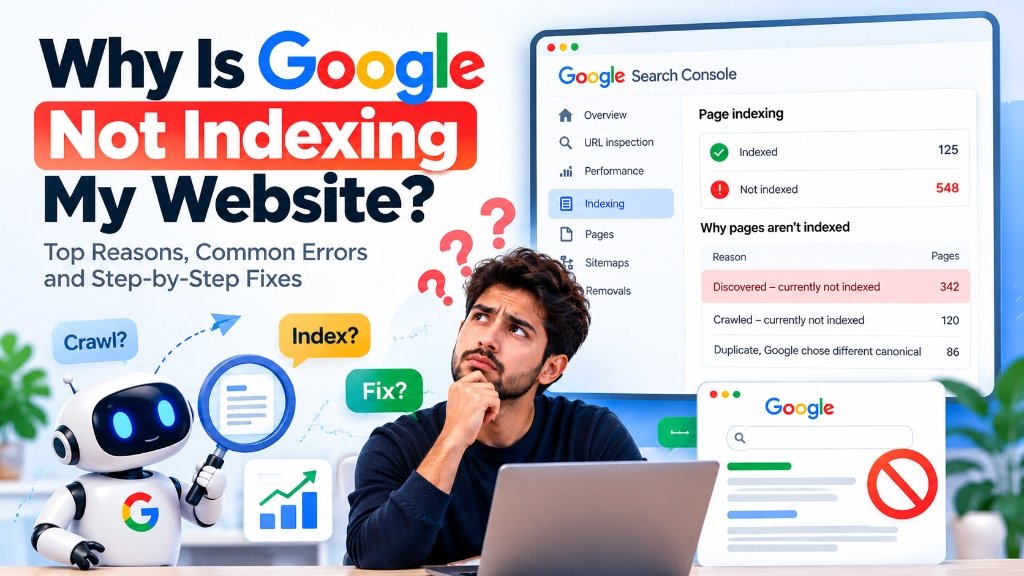
📷 Why Is Google Not Indexing My Website? Top Reasons, Common Errors and Step-by-Step Fixes
What Does Google Indexing Mean?
Google indexing is the process through which Google analyzes information collected from web pages and stores selected information in its search index. When someone searches for a topic, Google uses its index and ranking systems to identify relevant pages.
For example, imagine you publish a blog post about website indexing. Google may discover the URL through your XML sitemap or an internal link. It can then crawl the page, process its content, examine its canonical information, and evaluate whether it should be included in the index.
If Google indexes the page, it becomes eligible to appear in relevant search results. However, indexing does not guarantee that the page will rank first, appear for every keyword, or receive organic traffic.
Crawling vs. indexing vs. ranking
These terms describe different stages of search visibility.
- Crawling: Googlebot accesses a URL and retrieves information from the page.
- Indexing: Google processes the available information and decides whether and how the page should be represented in its search index.
- Ranking: Google determines where an eligible page may appear for a particular search query.
A page can be discovered but not crawled, crawled but not indexed, or indexed but ranked beyond the first page. Each situation requires a different approach.
Understanding these differences helps you avoid wasting time on the wrong solution. For example, submitting a URL again will not automatically fix a page that contains a noindex directive or has substantially duplicated content.
15 Reasons Why Google Is Not Indexing Your Website
Let's examine the most common Google not indexing website issues and how to investigate them.
1. Your Website Is Too New
One common reason for a Google not indexing website problem is that the website or its pages were published recently.
Google does not necessarily discover, crawl, and index every new page immediately. It must first discover the URL, access the page, and process its content. The timing varies depending on the website, URL discovery, server availability, content, and Google's crawling and indexing decisions.
A newly launched website with very few external links and limited internal navigation may take longer to attract Google's attention than an established website with frequently updated content.
How to fix it:
- Verify your website in Google Search Console.
- Submit your XML sitemap.
- Add links to important new pages from relevant existing pages.
- Make sure the pages are publicly accessible.
- Inspect important URLs using the URL Inspection tool.
- Monitor the Page Indexing report for changes.
If the page is new and technically accessible, allow time for Google to process it. Repeatedly submitting the same unchanged URL is not a reliable way to accelerate indexing.
2. Your Website Is Blocking Googlebot
Googlebot must be able to access a page before it can properly crawl and evaluate its content.
A website may unintentionally restrict Googlebot through robots.txt rules, firewall settings, access restrictions, or server configurations. This can happen during website development when temporary security settings remain enabled after launch.
For example, a robots.txt file may contain a rule that blocks crawling of an important directory. A hosting firewall or security service may also reject legitimate crawler requests.
How to fix it:
Open your website's robots.txt file, normally available at:
https://example.com/robots.txtReplace example.com with your actual domain.
Review the file for rules that might block important content. Then use Google Search Console's URL Inspection tool to test the affected page and investigate any crawl-access errors.
Do not remove every robots.txt rule without understanding its purpose. Some rules may protect private or unimportant areas of your website. Your objective is to allow crawling of the public pages that you want Google to evaluate.
Remember that robots.txt primarily controls crawling. It is not a dependable method for removing a URL from Google's index.
3. A Noindex Tag Is Preventing Indexing
A noindex directive tells search engines that support it not to include a page in their search results.
If a page that should appear in Google accidentally contains a noindex tag, Google may exclude it after crawling and processing that directive.
For example:
<meta name="robots" content="noindex">This directive may be intentionally used on private pages, staging environments, thank-you pages, or internal search results. Problems arise when it is accidentally applied to public landing pages, product pages, service pages, or blog posts.
How to fix it:
- Open the affected page's HTML source or scan it with our Google Indexability Checker.
- Search for
noindex. - Check whether the response includes an
X-Robots-TagHTTP header. - Review your CMS or SEO plugin's indexing settings.
- Remove the directive if the page is intended for search results.
- Test the page again in Search Console.
If you use a JavaScript framework, make sure the page's initial HTML or response headers do not contain an unintended noindex directive.
Also, ensure that Googlebot is allowed to crawl the page so it can read the updated directive. If robots.txt blocks crawling, Google may not be able to see the change.
4. Your Page Has a Canonical URL Problem
A canonical tag helps search engines understand which URL should be treated as the preferred version of similar or duplicate pages.
For example, the following URLs may display substantially similar content:
https://example.com/service/https://example.com/service/?source=campaignhttps://www.example.com/service/
Your website may specify one URL as canonical while you are trying to get another version indexed. Google may select the canonical URL it considers most appropriate, which can differ from your preference.
How to fix it:
Inspect the affected URL in Google Search Console and compare the user-declared canonical with Google's selected canonical.
Check whether the canonical tag points to the correct page. Make sure your internal links, XML sitemap, redirects, and canonical declarations are consistent.
For a page intended to be its own preferred version, a self-referencing canonical is often appropriate. For duplicate pages that should consolidate into another URL, use the correct canonical or a suitable redirect based on the situation.
Do not automatically change canonical tags on every page. First determine which URL should actually be indexed.
5. Google Has Discovered the Page but Has Not Crawled It Yet
The Search Console status “Discovered – currently not indexed” means Google knows about the URL but has not yet crawled it for indexing at the time represented by the report.
This is different from a page that has been crawled and rejected from indexing.
Possible contributing factors include limited discovery signals, low URL importance, site availability issues, crawl scheduling, or a large collection of low-value URLs competing for attention.
How to fix it:
- Add relevant internal links to the URL.
- Include the preferred URL in your XML sitemap.
- Check whether the server responds reliably.
- Remove unnecessary URL variations and duplicate pages.
- Improve the page's usefulness and uniqueness.
- Inspect the URL and review the information available in Search Console.
If the URL is technically accessible, focus on making it easier for Google to discover and understand why the page matters. Do not assume that submitting it repeatedly will force Google to crawl it.
6. Google Has Crawled the Page but Has Not Indexed It
The status “Crawled – currently not indexed” means Google has crawled the URL but has not included it in the index at the time of reporting.
This status does not automatically mean that the page has a technical error. Google may decide not to index a page because its content is duplicative, thin, incomplete, or not sufficiently useful compared with other available pages. Other technical or canonical issues may also be relevant.
How to fix it:
Start by reviewing the actual page that Googlebot received. Check its main content, canonical tag, HTTP status, indexing directives, and rendered output.
Then ask:
- Does this page answer a distinct user question?
- Does it contain original information or useful analysis?
- Is the main content accessible without user interaction?
- Is it substantially similar to another page on the website?
- Does the page have a clear purpose?
- Can visitors reach it through relevant internal links?
Improve the page where necessary, correct technical problems, and request indexing after meaningful changes. The request is an invitation for Google to recrawl the URL, not a guarantee of inclusion.
7. Your Content Is Thin, Repetitive, or Unhelpful
Publishing many pages does not automatically improve organic visibility.
If your website contains short articles that repeat the same information, automatically generated pages with little added value, or landing pages that exist mainly to target keyword variations, Google may choose not to index some of them.
For example, publishing ten nearly identical articles targeting different versions of “Google indexing tool” may be less useful than creating one comprehensive guide supported by several genuinely distinct articles.
How to fix it:
Create content that serves a clear purpose. Explain concepts accurately, provide practical steps, include relevant examples, and answer the questions visitors are likely to have.
Avoid adding words merely to reach a target article length. A shorter, comprehensive answer may serve users better than a much longer article filled with repetition.
If two pages serve essentially the same purpose, consider combining them into one stronger resource and redirecting outdated URLs where appropriate. Preserve distinct pages when they serve meaningfully different search intents.
8. Your XML Sitemap Has Errors
An XML sitemap helps search engines discover important URLs on your website. However, submitting a sitemap does not guarantee that every listed URL will be crawled or indexed.
A sitemap can be unhelpful if it contains redirected URLs, broken pages, non-canonical versions, noindex pages, or URLs that are not intended for search results.
How to fix it:
- Open your sitemap URL or audit it with our XML Sitemap URL Extractor.
- Confirm that it loads successfully.
- Check that it contains the correct canonical URLs.
- Remove URLs that return errors or should not be indexed.
- Ensure that important public pages are included.
- Submit the sitemap in Google Search Console.
- Review the sitemap processing status.
For a large website, a sitemap index can reference multiple smaller sitemap files. Organize these logically so you can identify issues with different page types.
Use accurate last-modified information when available. Do not change timestamps artificially just to make old pages appear freshly updated.
9. Your Website Has Broken Internal Links
Google discovers many URLs by following links from pages it has already crawled.
If a new article is not linked from your navigation, category pages, related posts, or other relevant content, Google may have fewer opportunities to discover it.
This problem is sometimes described as an orphan page: a page that has no meaningful internal links pointing to it.
How to fix it:
Add descriptive, crawlable links from relevant pages. For example, a blog post about indexing errors could link to a related guide about URL inspection or a tool that helps users audit URL status.
Use clear anchor text that describes the destination. Avoid adding hundreds of irrelevant links simply to increase link counts.
Check that links use valid URLs, that they are not hidden behind inaccessible interactions, and that important pages can be reached through a sensible navigation structure.
Internal linking supports discovery and helps visitors understand how topics on your website relate to each other.
10. Your Website Returns Server Errors
Google may struggle to crawl or index a page if the server frequently returns errors.
Examples include HTTP 5xx errors, timeouts, intermittent connection failures, and pages that return an incorrect status code. If Googlebot repeatedly encounters availability problems, crawling may be reduced.
A page that looks normal in your browser may still fail when requested under different conditions.
How to fix it:
- Check the page's HTTP response status.
- Review hosting and application logs.
- Investigate timeouts and intermittent server failures.
- Test important pages from different network conditions.
- Review firewall, CDN, and bot-protection settings.
- Make sure the page returns a genuine successful response when it exists.
A valid page generally needs to return an appropriate successful HTTP status, usually 200 OK, and provide indexable content. A deleted page should not return a fake success response with an error message.
If you use Cloudflare or another security service, check whether legitimate search crawlers are being challenged or blocked. Avoid disabling security protections globally when a narrower configuration change can resolve the problem.
11. Your JavaScript Website Does Not Render the Main Content Properly
Modern websites often use React, Next.js, Vue, Angular, or other JavaScript frameworks. These technologies can support search-friendly websites, but implementation problems may prevent Google from seeing the intended content.
For example, the initial HTML might contain only an empty application container while the main article is inserted later by JavaScript. If rendering fails because a script is unavailable, an API request fails, or an essential component requires user interaction, the rendered page may not contain the expected content.
How to fix it:
Use the URL Inspection tool in Google Search Console to examine the tested page and its rendered output where available.
Check that:
- The main page content is accessible to Google.
- Important text does not depend on a user clicking a button.
- Internal navigation uses crawlable links.
- Required JavaScript and CSS resources can load.
- The page does not display a blank state or loading error to crawlers.
- Canonical and robots directives are implemented correctly.
Server-side rendering or static generation can make important content available in the initial HTML, depending on your framework and architecture. However, JavaScript rendering is not automatically an indexing problem; the actual output and accessibility need to be tested.
12. Duplicate Content Is Creating Confusion
Duplicate or substantially similar pages may make it harder for Google to determine which version should be shown in search results.
This can occur with product variations, tracking parameters, printer-friendly pages, category filters, copied descriptions, or multiple URLs serving the same content.
Duplicate content does not automatically cause a penalty, and similar pages are not always problematic. The important question is whether each URL serves a distinct purpose and whether Google can identify the preferred version.
How to fix it:
Audit similar URLs and identify pages that provide little unique value. Where appropriate, consolidate overlapping content, use canonical tags, implement redirects, or manage URL parameters.
For eCommerce websites, ensure that product variants and filter URLs have a deliberate indexing strategy. Do not indiscriminately block useful product and category pages.
For blogs, avoid publishing multiple articles that answer exactly the same question with only minor wording changes.
13. Your Website Has Poor Mobile Usability or Incomplete Mobile Content
Google primarily uses the mobile version of a website's content for indexing. If the mobile version omits important text, links, or structured information found on desktop, Google may not understand the page in the same way you expect.
A page can look attractive on a desktop while presenting an incomplete or difficult-to-use experience on mobile devices.
How to fix it:
Check your pages on mobile screens. Ensure that the main text, headings, images, internal links, and essential navigation remain available.
Review responsive design, font sizes, layout shifts, and loading behavior. Avoid hiding important content solely because the visitor is using a smaller screen.
Mobile usability and page performance are worth improving for visitors, but a mobile performance score by itself does not determine whether a page is indexed.
14. Your Website Has Too Many Low-Value URLs
Large websites can generate thousands of URLs through search filters, tracking parameters, pagination, calendars, internal search results, or combinations of product attributes.
When many URLs provide little unique information, the website can become harder to crawl and maintain. Google may spend time discovering URL variations instead of finding important content.
How to fix it:
Identify URL patterns that generate duplicate or low-value pages. Decide which page types should be crawlable and indexable, and manage the others carefully.
Use canonical tags, redirects, suitable robots.txt rules, or other appropriate technical methods depending on the situation. Remember that robots.txt controls crawling, while noindex is used to request exclusion from search results and must be crawlable for Google to read it.
Do not remove useful pages simply to reduce the total URL count. Prioritize pages that serve real users and provide distinct information.
15. Your Website Lacks Clear Topic Coverage and Discovery Signals
A page may be technically accessible but difficult to discover or understand if it has no meaningful relationship to the rest of your website.
For example, a blog post about indexing may be published without related articles, relevant category links, or clear navigation. Visitors may struggle to find it, and search engines may receive fewer signals about its context.
How to fix it:
Organize related content into useful topic clusters. A website focused on indexing tools could publish separate, genuinely useful resources about crawling, sitemap configuration, Search Console, canonical URLs, and backlink discovery.
Link these resources together where it benefits readers. Keep titles and headings descriptive, provide useful introductions, and make the primary purpose of each page clear.
Do not create artificial links or repetitive pages just to manipulate search results. Focus on a coherent website structure that helps visitors find answers.
How to Fix Google Indexing Issues Step by Step
If you want a practical troubleshooting process, follow these steps in order rather than changing several unrelated settings at once.
Step 1: Open Google Search Console
Verify that you have access to the correct website property in Google Search Console.
Make sure you are examining the correct protocol and hostname. For example, https://example.com/ and https://www.example.com/ can be represented differently depending on your property setup.
Open the Page Indexing report and identify which URLs are indexed and which are excluded. Look for patterns rather than assuming every excluded URL is a problem.
Step 2: Inspect the Exact URL
Use the URL Inspection tool to test the page you want to index.
Review the available information about the URL's indexing status, crawlability, indexing directives, and canonical selection. If a live test is available, use it to investigate whether Google can access the current version.
A live test can reveal technical accessibility problems, but it does not guarantee that Google will index the page.
Step 3: Check the HTTP Status Code
The page should return a successful response if it exists and is intended to be indexed.
Investigate 404 errors, redirects, server errors, access-denied responses, and soft 404 situations. A page that returns an error or displays no meaningful content may not be suitable for indexing.
Step 4: Review Robots.txt and Noindex
Check the robots.txt file and the page's meta robots directives. Also inspect HTTP response headers where relevant.
Confirm that you are not unintentionally blocking Googlebot or telling Google not to index a page you want in search results.
Step 5: Verify the Canonical URL
Compare the canonical URL declared on the page with the URL you want indexed.
Check for inconsistent canonical tags, redirect chains, mixed hostname versions, and conflicting internal links. Correct the preferred URL strategy before requesting another crawl.
Step 6: Improve Content and Internal Links
Make sure the page answers a clear user question and provides useful information that is not simply copied from other pages on your site.
Add contextual internal links from relevant pages. Include the URL in your sitemap if it is a canonical, indexable page that you want search engines to discover.
Step 7: Request Indexing Where Appropriate
After resolving important issues, use the URL Inspection tool to request indexing for a small number of updated URLs.
For larger sites, maintain an accurate sitemap and a clear internal linking structure. Avoid repeatedly submitting unchanged URLs as if every request were a separate indexing signal.
Step 8: Monitor the Results
Check Search Console again after Google has had time to recrawl and process the page.
Keep in mind that reports can take time to update. Record the URL, original status, changes made, and subsequent results so you can identify which fixes were effective.
How to Use a Website Indexing Checker
A website indexing checker can help you investigate URLs and organize an indexing audit. The usefulness of a particular tool depends on the data it actually retrieves and the features it provides.
A basic checker may inspect a URL's response, indexing directives, canonical information, or robots.txt accessibility. A Google Search Console integration may provide property-specific indexing information for authorized users. These functions are not interchangeable.
For example, a tool that checks whether a page returns HTTP 200 cannot automatically prove that Google has indexed it. Similarly, a URL submission service cannot guarantee that Google will include the submitted page in search results.
When choosing a website indexing checker, look for features such as:
- Single-URL checks.
- Bulk URL processing.
- HTTP status inspection.
- Robots and noindex checks.
- Canonical URL validation.
- Clear reports and actionable diagnostics.
- Export options for SEO audits.
- API access where supported and documented.
Before relying on a result, confirm what the tool measured. Technical accessibility, URL discovery, crawling, indexing, and ranking are different outcomes.
Can a URL Indexing Tool Help?
A URL indexing tool can support your workflow by helping you organize URL submissions, monitor supported processing events, or manage large collections of URLs. It may save time when you handle multiple websites or publish content regularly.
However, no third-party service can guarantee that Google will crawl, index, or rank every submitted URL.
If you use 1ClickIndexer, evaluate the available features according to the service's actual documentation. Use the platform as part of a broader workflow that includes technical SEO, useful content, internal linking, sitemap management, and Google Search Console monitoring.
You can explore the available services and plans on the 1ClickIndexer website. Before choosing a plan, review its current features, usage limits, supported submission methods, and reporting capabilities.
When should you use an indexing tool?
A URL submission workflow may be useful when you regularly publish new content, maintain large websites, or manage URL lists for multiple SEO projects.
It is not a replacement for fixing technical problems. If a page contains a noindex directive, returns a server error, or has no unique value, sending the URL through additional tools will not automatically resolve the underlying issue.
Start with diagnosis. Use submission tools only when they fit the problem and your workflow.
How Long Does Google Take to Index a Website?
There is no fixed timeline for indexing a website or individual page.
Some URLs may be crawled and indexed relatively quickly, while others may take longer or never be indexed. Timing can depend on discovery, site availability, crawl demand, page quality, duplication, technical accessibility, and Google's indexing systems.
Avoid making decisions based on a universal promise such as “every page will be indexed within 24 hours.” Google does not guarantee a particular crawling or indexing schedule.
Instead, focus on the factors you can control:
- Keep important pages accessible.
- Maintain a clean sitemap.
- Improve internal linking.
- Publish useful and original content.
- Resolve technical errors.
- Monitor the URL Inspection and Page Indexing reports.
If a page remains excluded, investigate its specific status rather than repeatedly waiting or resubmitting it without changes.
How to Get Website Indexed by Google: Best Practices
A reliable indexing strategy starts with a technically sound website and useful content.
Create a clear website structure
Organize pages into logical categories. Ensure important pages are linked from navigation, category pages, or relevant content hubs.
Publish useful and original content
Answer real questions with accurate information. Include examples, practical explanations, and details that help readers complete their task.
Keep your XML sitemap accurate
Include preferred, indexable URLs and remove unnecessary variations. Submit the sitemap through Search Console and monitor its processing status.
Use descriptive titles and headings
Give each page a clear title and a primary heading that reflects its purpose. Avoid repeating the same title across many unrelated pages.
Review canonical and indexing directives
Check that public pages intended for search results are not accidentally marked noindex and that canonical URLs are consistent.
Maintain reliable hosting
Keep important pages available, minimize unnecessary redirects, and investigate recurring server errors.
Measure progress with reliable data
Use Search Console for Google-specific reporting and inspection. Use third-party tools for the specific checks they genuinely support.
These practices improve your website's technical readiness and discoverability, but they do not guarantee indexing or top rankings.
Common Google Search Console Indexing Errors Explained
Google Search Console reports can help you understand why URLs are not appearing in search results. The exact explanation depends on the URL and the report.
“Discovered – currently not indexed”
Google knows about the URL but has not yet crawled it for indexing. Review discovery signals, internal links, sitemap accuracy, and server availability.
“Crawled – currently not indexed”
Google crawled the URL but has not included it in the index. Review content usefulness, duplication, canonical selection, and technical directives.
“Excluded by ‘noindex’ tag”
Google encountered a noindex directive. Confirm whether the exclusion is intentional. If the page should appear in search results, correct the directive and allow Google to recrawl it.
“Blocked by robots.txt”
Google is restricted from crawling the URL by robots.txt. Review the rule and determine whether the page should be accessible to Googlebot.
“Duplicate without user-selected canonical”
Google considers the page a duplicate and selected another canonical URL without an explicit user-selected canonical in the way described by the report. Review the page's preferred URL and duplication pattern.
“Page with redirect”
The inspected URL redirects to another URL. Usually, you should inspect the destination and ensure that the redirect is intentional and that internal links point to the preferred destination.
“Not found (404)”
The URL returns a not-found response. If the page should exist, repair the URL or restore the content. If it has been permanently removed, a genuine 404 or 410 may be appropriate; redirect only when there is a relevant replacement.
The correct fix depends on the reason shown in Search Console. Do not try to make every URL indexed if some pages are intentionally private, duplicated, redirected, or unnecessary.
Frequently Asked Questions
1. Why is Google not indexing my website?
Google may not have discovered your pages, may be unable to crawl them, or may have decided not to include them in its index. Common causes include a new website, robots.txt restrictions, noindex directives, server errors, duplicate content, incorrect canonical tags, and pages that provide limited unique value. Use Google Search Console to inspect the affected URL and identify its specific status.
2. How do I fix a Google not indexing website problem?
First, inspect the URL in Search Console. Check the HTTP response, robots.txt rules, noindex directives, canonical URL, sitemap inclusion, and internal links. Then improve any content issues and request indexing after meaningful changes.
3. What does “Discovered – currently not indexed” mean?
It means Google knows the URL exists but has not yet crawled it for indexing. Improve discovery through relevant internal links and an accurate sitemap, and check that your website responds reliably.
4. What does “Crawled – currently not indexed” mean?
It means Google crawled the URL but did not include it in the index at the time of reporting. Review the page's usefulness, originality, canonical information, and technical setup.
5. How can I check whether my website is indexed?
Use the URL Inspection tool in Google Search Console for a verified property. A site-restricted Google search can provide a rough indication of indexed URLs, but it is not a complete or authoritative substitute for Search Console.
6. Does submitting a sitemap guarantee Google indexing?
No. A sitemap helps Google discover URLs and understand information about them. It does not guarantee that every URL will be crawled or indexed.
7. Does requesting indexing guarantee that a page will appear on Google?
No. A request can prompt Google to consider recrawling a URL, but it does not guarantee crawling, indexing, or ranking.
8. Can a website indexing checker tell me whether Google indexed my page?
It depends on the tool. A technical checker may verify response codes and indexing directives, while Google-specific status data generally requires an appropriate Google data source or Search Console access. Check what the tool actually measures before interpreting its results.
9. Can a URL indexing service fix indexing errors automatically?
Not all errors. A service may help manage supported submission or discovery workflows, but technical problems such as noindex directives, broken pages, blocked crawling, or duplicate content usually need to be diagnosed and corrected separately.
10. Should I submit the same URL multiple times?
Repeated submissions of an unchanged URL do not guarantee faster indexing. Correct the underlying problem, make the page discoverable, and use the relevant Google tools appropriately.
11. Does backlink indexing guarantee higher rankings?
No. Indexing a backlink does not guarantee ranking improvements. Search rankings depend on many factors, and links must be evaluated in context. Avoid manipulative link schemes and prioritize useful, relevant content and legitimate promotion.
12. Can JavaScript websites be indexed by Google?
Yes, Google can render and process many JavaScript websites. However, implementation problems can prevent important content or links from being available. Test the rendered page and ensure the initial response, scripts, and navigation work correctly.
13. How often should I check indexing status?
Check important URLs after publishing or making meaningful technical changes, then review Search Console reports periodically. There is no need to repeatedly check or submit the same unchanged URL throughout the day.
14. Does faster website speed guarantee indexing?
No. Reliable performance can help Google crawl a site efficiently, but speed alone does not guarantee that a page will be indexed. The page must also be accessible and provide indexable content.
15. What is the best way to resolve Google Search Console indexing errors?
Start with the exact reason reported for each URL. Fix technical accessibility problems first, review canonical and indexing directives, improve content when needed, and monitor the result. Avoid applying one generic solution to every exclusion.
Conclusion
When Google is not indexing your website, the most effective approach is to identify the actual reason before making changes.
Start with Google Search Console and inspect the affected URLs. Confirm that Googlebot can access the pages, that they return appropriate HTTP responses, and that no unintended robots.txt or noindex rule blocks indexing. Review canonical tags, sitemap accuracy, internal links, duplicate content, and the usefulness of the page itself.
A website indexing checker can help with technical audits, while a URL submission workflow can support URL management and discovery. Neither replaces the need for accessible pages, clear site architecture, and content that genuinely helps users.
If you manage many URLs, build a repeatable process: audit, fix, submit where appropriate, and monitor. You can also explore 1ClickIndexer to see whether its available URL submission and indexing workflow features suit your SEO process.
Most importantly, remember that indexing and ranking are different outcomes. A page must be indexed to appear as a normal Google Search result, but indexing alone does not guarantee traffic or a first-page position. Focus on making your website accessible, useful, technically consistent, and easy for both people and search engines to understand.
Recommended Official Resources
For accurate, up-to-date guidance, refer to Google's documentation: