
Introduction
Have you published a new blog post, updated an existing page, or added important URLs to your website, but Google still hasn't included them in search results? When you check Google Search Console, you might find the status “Crawled – Currently Not Indexed.”
This status can be frustrating, especially when you've already invested time in writing content, optimizing keywords, building internal links, and submitting your sitemap. The good news is that this status doesn't automatically mean your website has a serious technical problem.
Google may have successfully visited your page but decided not to include it in its search index at that time. The reason could involve content quality, duplication, canonical signals, rendering problems, or other indexing considerations.
In this guide, you'll learn how to fix Crawled Currently Not Indexed issues using practical troubleshooting steps, how to inspect affected URLs, and how to improve your website's chances of getting indexed.
Whether you're managing a WordPress blog, a business website, an eCommerce store, or a large SEO project, these methods can help you identify the actual problem instead of repeatedly submitting the same URLs.
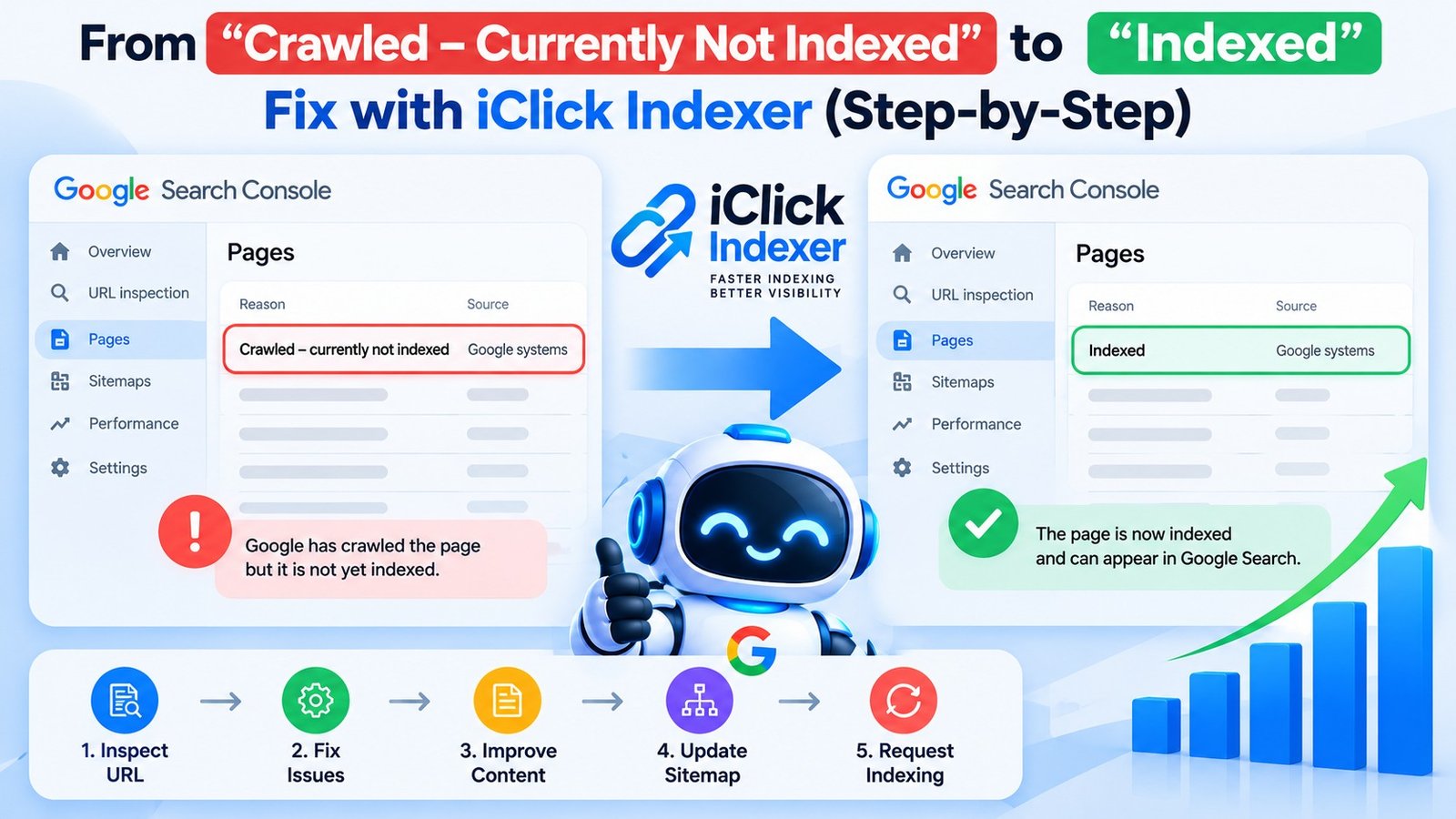
📷 From Crawled – Currently Not Indexed to Indexed: Step-by-Step Fix Guide in Google Search Console
What Does “Crawled – Currently Not Indexed” Mean?
The Crawled Currently Not Indexed status in Google Search Console means that Google has crawled a URL but has not currently included that page in its search index.
In simple terms, Googlebot has visited the page and retrieved its content, but the page has not been selected for indexing at the time reflected in the report.
This is different from “Discovered – Currently Not Indexed.” In the discovered status, Google knows about the URL but has not yet crawled it. In the crawled status, a crawl has already taken place.
Google doesn't guarantee that every crawled URL will be indexed. A page can be accessible and technically crawlable while still not meeting Google's criteria for inclusion in search results.
Example: Imagine you've published 20 blog posts on your website. Google crawls all 20 URLs, but only 12 appear in the index. The remaining eight might show Crawled Currently Not Indexed. You should investigate those pages individually rather than assume that all eight have the same issue.
For Google's official explanation of page indexing statuses, refer to the Google Search Console Page Indexing Report documentation.
Why Google Crawls But Does Not Index Pages
Before applying a fix, understand why Google crawls but does not index a page. The correct solution depends on the actual cause.
1. Thin or Incomplete Content
A page may contain too little useful information to satisfy the searcher's needs. For example, a blog post with a short introduction, a few generic paragraphs, and no meaningful explanation might offer little value compared with existing search results.
The solution isn't simply to increase the word count. Improve the depth, usefulness, originality, and completeness of the information.
2. Duplicate or Highly Similar Content
If multiple URLs contain substantially similar information, Google may select one URL as the canonical version and leave the others out of the index.
This can happen when websites publish near-identical articles targeting slightly different keyword variations or generate multiple URLs through filters and parameters.
3. Weak Internal Linking
A page that is difficult to reach through your website's navigation may receive fewer useful internal links and weaker contextual signals.
Important pages should be linked from relevant articles, category pages, or other appropriate sections of your website.
4. Incorrect Canonical Tags
A canonical tag tells search engines which URL is preferred when similar or duplicate pages exist.
If an important page incorrectly points its canonical tag to another URL, Google may choose to index the other URL instead.
5. Rendering or Technical Problems
JavaScript errors, incomplete page rendering, server instability, and inaccessible resources can affect what Google can process from a page.
Although Crawled Currently Not Indexed is not necessarily a technical error, rendering problems are worth investigating when the live page does not display its main content correctly to Google.
6. Poor Website Structure
Pages with confusing navigation, excessive duplication, or weak relationships to the rest of the site can be harder to evaluate in context.
A clear structure helps users and search engines discover important content.
7. Low Original Value
A page that repeats commonly available information without adding useful explanations, examples, first-hand observations, or reliable supporting evidence may struggle to earn a place in the index.
Focus on solving the reader's actual problem rather than rewriting the same information found on competing websites.
How to Fix Crawled – Currently Not Indexed: 10 Proven Steps
Follow these steps in order. Start with diagnosis, fix the underlying problems, and then request another crawl where appropriate.
Step 1: Inspect the Affected URL in Google Search Console
Open Google Search Console and select the correct website property.
- Open the URL Inspection tool.
- Enter the complete URL of the affected page.
- Review the current indexing status.
- Check the last crawl date.
- Review the crawl, indexing, and canonical information available.
- If necessary, select Test Live URL to check the page's current accessibility.
The live test helps you evaluate the current version of a page, while the indexed report provides information about Google's last processed version. These views can differ if you've recently made changes.
Don't begin changing plugins, robots.txt, or canonical tags without first checking what the report actually shows.
Official reference: Inspect and troubleshoot a single page.
Step 2: Improve the Content Quality
Review the affected article from the perspective of someone searching for that topic.
Ask yourself:
- Does the introduction answer the reader's main question?
- Does the article provide useful information beyond generic explanations?
- Are the examples accurate and relevant?
- Does the page satisfy the search intent behind its primary keyword?
- Is the content clearly organized with meaningful headings?
- Does it include reliable references when factual claims require support?
For example, if you're writing about website indexing, explain how crawling differs from indexing, demonstrate how to inspect a URL, and show readers how to interpret the results.
Avoid adding unnecessary paragraphs merely to reach a particular word count. A focused, useful article can be more valuable than a much longer article filled with repetition.
Step 3: Check for Duplicate Content
Compare the affected page with other pages on your website.
Look for:
- Articles that target almost identical search queries.
- Pages copied from another website.
- Repeated service descriptions with only minor wording changes.
- Multiple URLs displaying substantially the same content.
- Filtered or parameter-based URLs that duplicate existing pages.
If two articles answer exactly the same question, consider combining them into one comprehensive page and redirecting the weaker URL when appropriate.
If both pages serve distinct user needs, improve their differences and make their purposes clear.
Remember that duplicate content is not automatically a penalty. The problem is often that Google chooses a different URL as the representative page for similar content.
Learn more from Google's canonicalization documentation.
Step 4: Verify the Canonical URL
A canonical issue can make an otherwise accessible page remain outside Google's index.
Check the canonical information in URL Inspection and compare it with the canonical tag declared on the page.
For an important page that should be indexed independently:
- Use a self-referencing canonical where appropriate.
- Make sure the declared canonical points to the correct preferred URL.
- Use consistent internal links to that preferred URL.
- Avoid conflicting signals between redirects, canonical tags, and sitemap entries.
For example, if your preferred URL is:
https://example.com/blog/indexing-guide/but the page declares a different article as its canonical, Google may choose that other article instead.
Do not change canonical tags blindly. If the page is intentionally an alternate version of another URL, the existing canonical may be correct.
Step 5: Check Robots.txt and the Noindex Directive
A page must be accessible to Googlebot and permitted to be indexed if you want it to appear in search results. You can test these signals in bulk with our free Google Indexability Checker.
Review the following:
- Robots.txt: Confirm that an incorrect rule isn't preventing Googlebot from crawling the page or its necessary resources.
- Meta robots: Check whether the page contains a
noindexdirective. - HTTP headers: Confirm that the server isn't sending an unintended
X-Robots-Tag: noindexheader. - Page accessibility: Make sure the page doesn't require a login or return an unexpected error.
A useful distinction: robots.txt controls crawling, while a noindex directive controls whether an accessible page can be indexed. Blocking a URL in robots.txt can prevent Google from seeing a noindex directive on that page.
If you're using WordPress with Rank Math or Yoast SEO, check the page's indexing settings and the relevant global settings. Also verify that a plugin or theme hasn't introduced conflicting directives.
Step 6: Strengthen Internal Linking
Internal links help Google discover pages and understand their relationship to other content.
Find relevant pages on your website that already receive traffic or are regularly crawled. Add contextual links to the affected article where doing so genuinely helps readers.
For example, a blog about fixing indexing issues could link to related guides about:
- XML sitemap errors.
- Canonical tags.
- Technical SEO audits.
- Google Search Console setup.
- Website crawlability.
Use descriptive anchor text that explains the destination rather than repeating the same exact-match keyword everywhere.
Also check that the affected page is not isolated from your website's main navigation structure.
Step 7: Check the XML Sitemap
Your XML sitemap should contain the preferred, indexable URLs you want Google to discover.
For important pages, verify that:
- The URL returns a successful HTTP response.
- The page is not intentionally marked
noindex. - The URL is the preferred canonical version.
- The sitemap doesn't contain unnecessary redirects or broken URLs.
- The sitemap is accessible and has been submitted in Search Console.
If you use WordPress with Rank Math, open the sitemap index generated by the plugin (or extract it via our XML Sitemap Extractor) and confirm that the relevant post or page sitemap includes the correct URL.
Submitting a sitemap helps Google discover URLs, but it does not guarantee that every submitted page will be crawled or indexed.
Step 8: Check Page Rendering and Mobile Usability
Google needs to access and process the main content of your page.
Run the live URL test in Search Console and inspect the available tested-page information.
Look for:
- Missing main content.
- JavaScript errors.
- Resources blocked unintentionally.
- Unexpected redirects.
- Server or loading failures.
- Differences between what users see and what Google can render.
For WordPress websites, review recent caching, optimization, security, and JavaScript-related plugin changes if the problem began after an update.
Don't disable every plugin at once on a live website. Test changes carefully, ideally in a staging environment, so that troubleshooting doesn't create new problems.
Step 9: Improve Trust and Demonstrate Experience
Content should give readers a reason to trust the information.
For technical SEO articles, consider adding:
- Practical examples from real troubleshooting work.
- Screenshots that show the relevant Search Console steps.
- Clear explanations of limitations and possible outcomes.
- Author information appropriate to the website.
- Links to official documentation for technical claims.
- Dates that accurately reflect substantial updates.
Do not fabricate case studies, customer results, professional credentials, or personal experiences. If you have actually tested a fix, describe what you did and what happened.
These practices support Google's people-first content principles and make the article more useful, although no individual E-E-A-T element guarantees indexing.
Step 10: Request Indexing After Fixing the Problem
Once you've corrected the underlying issues, return to the URL Inspection tool.
- Inspect the affected URL again.
- Select Test Live URL.
- Confirm that the page is accessible and that the intended content is present.
- Review any remaining technical problems.
- If appropriate, select Request Indexing.
- Monitor the URL's status in Search Console over the following days or weeks.
Request indexing is a request, not a command that forces Google to include a page in its index.
Repeatedly submitting the same unchanged URL will not make Google index it faster. If you have many affected URLs, prioritize important pages and use an updated sitemap to support discovery.
Official reference: Ask Google to recrawl your URLs.
How to Force Google to Recrawl a URL
Many website owners search for a way to force Google to recrawl a URL. The practical approach is to make the page accessible, fix any identified issues, and use Google's supported recrawl request methods.
For a small number of URLs, use URL Inspection in Search Console. For a larger group of pages, submit or update your XML sitemap as appropriate.
Keep in mind that recrawling and indexing are two different processes. Google may revisit a page without adding it to the index.
There is no official method that guarantees instant indexing for every URL.
Can a Google Indexing Tool Help?
A Google Indexing Tool can refer to different kinds of software or services that help users monitor URLs, organize submissions, or request indexing through supported methods.
Before choosing a tool, check what it actually does and whether it uses an official, permitted integration.
Google Search Console's URL Inspection tool is the standard option for inspecting individual URLs and requesting indexing for websites you manage.
The Indexing API is not a general-purpose indexing API for ordinary blog posts and business pages. Google's published eligibility is limited to supported job-posting and livestreaming pages. Do not assume that a third-party tool using the API can legitimately submit every type of URL.
When Should You Consider a URL Indexing Service?
A URL Indexing Service may be useful if you need help auditing many URLs, identifying common indexing problems, organizing submissions, or monitoring changes.
Before purchasing one, ask whether the provider performs actual technical diagnosis or simply resubmits URLs. A submission service cannot compensate for duplicate content, incorrect canonical tags, inaccessible pages, or weak content.
Avoid services that promise guaranteed Google indexing or guaranteed rankings without explaining their methods and limitations.
Is a Bulk URL Indexer Useful?
A Bulk URL Indexer is designed to handle larger URL lists, but bulk submission alone does not resolve indexing quality issues.
For a large website, start by grouping URLs according to their status, page type, canonical version, and business importance. Fix shared technical problems first, then prioritize individual pages.
A useful workflow is:
- Export affected URLs from Search Console.
- Group URLs by their reported indexing status.
- Identify recurring issues across page templates.
- Fix the root causes.
- Submit an updated sitemap where appropriate.
- Recheck important URLs and track the results.
What Is a Google Indexability Checker?
A Google Indexability Checker is a tool or audit process used to identify potential obstacles to indexing.
Depending on its features, it may check HTTP status codes, robots directives, canonical tags, sitemap inclusion, and other technical signals.
However, a third-party checker cannot fully reproduce Google's internal indexing decision. Use it to identify technical issues, then verify important findings in Search Console and on the live page.
How Long Does It Take to Fix Crawled – Currently Not Indexed?
There is no universal timeline for resolving the Crawled Currently Not Indexed status.
After you fix a problem and request indexing, Google may take several days or longer to recrawl and reassess the page. In some cases, indexing may take weeks or may not happen at all.
The result depends on factors such as the site's technical accessibility, content usefulness, duplication, canonical selection, and Google's indexing systems.
Instead of checking the status every few minutes, maintain a simple tracking sheet with the URL, original status, changes made, request date, and latest result.
This makes it easier to distinguish between a technical problem that still exists and a page that is waiting for reassessment.
Common Mistakes to Avoid
When trying to fix Crawled Currently Not Indexed issues, avoid these common mistakes:
- Resubmitting URLs repeatedly: Repeated requests do not guarantee faster crawling or indexing.
- Publishing multiple similar articles: Targeting slightly different keywords does not automatically justify separate pages.
- Changing canonical tags without checking: You may create new indexing conflicts.
- Blocking pages in robots.txt without understanding the effect: Google may be unable to see the page's indexing directives.
- Buying guaranteed indexing packages: No legitimate service can guarantee inclusion of every URL in Google Search.
- Adding backlinks without fixing the page: Backlinks may help discovery and authority signals, but they don't guarantee indexing.
- Ignoring server and rendering issues: A page that appears normal in your browser may not be processed correctly by Google.
- Assuming every non-indexed URL is a problem: Duplicate, alternate, and intentionally excluded URLs may not need to be indexed.
Frequently Asked Questions
1. What does Crawled – Currently Not Indexed mean in Google Search Console?
It means Google has crawled the URL but has not currently included it in its search index. The page may need improvements, or Google may have selected another URL as the preferred version.
2. How do I fix Crawled Currently Not Indexed?
Inspect the URL in Search Console, review its canonical and indexing directives, check the page's accessibility, improve its unique value, strengthen relevant internal links, and request indexing after making appropriate changes.
3. Why does Google crawl my page but not index it?
Possible reasons include duplicate or low-value content, canonical selection, rendering problems, technical accessibility issues, and Google's decision not to include the URL in the index at that time. The status alone does not identify one universal cause.
4. Does Request Indexing guarantee that my page will appear on Google?
No. Request Indexing asks Google to recrawl and reconsider the URL. It does not guarantee immediate crawling, indexing, or search rankings.
5. How can I index multiple URLs at once?
For many URLs, maintain a clean XML sitemap containing the preferred, indexable pages and submit it through Search Console. Fix common technical problems and prioritize the URLs that matter most.
6. Can backlinks fix the Crawled – Currently Not Indexed status?
Relevant backlinks can help Google discover pages and may provide useful signals, but backlinks do not guarantee indexing. Resolve content, canonical, and technical problems first.
7. Is a Google Indexing Tool necessary?
No. Website owners can use Google Search Console's URL Inspection tool and XML sitemap features without purchasing a separate indexing tool. Third-party tools should be evaluated according to their actual capabilities and compliance.
8. What is the difference between Crawled – Currently Not Indexed and Discovered – Currently Not Indexed?
With Crawled – Currently Not Indexed, Google has crawled the URL but has not indexed it. With Discovered – Currently Not Indexed, Google knows about the URL but has not yet crawled it, often because crawling has been deferred.
9. Should I delete pages that are not indexed?
Not automatically. First determine whether each page serves a distinct purpose. Improve useful pages, consolidate genuinely overlapping content where appropriate, and remove or redirect pages only when justified by the site's content strategy.
10. Can I guarantee that Google will index my website?
No. You can improve crawlability, content quality, internal linking, and technical indexability, but Google decides which eligible pages to include in its index. Be cautious of any provider promising guaranteed indexing or rankings.
Conclusion
The Crawled – Currently Not Indexed status does not necessarily mean your website is broken. It indicates that Google has crawled a URL but has not included it in the index at that time.
The most effective way to resolve the issue is to investigate the affected URL, improve its usefulness, verify canonical signals, check indexing directives, strengthen internal linking, and request another crawl after fixing the underlying problems.
Whether you're troubleshooting a single blog post or managing hundreds of URLs, use Google Search Console as your primary diagnostic resource. Tools such as a Google Indexability Checker or Bulk URL Indexer can support specific workflows, but they cannot replace technical diagnosis or guarantee indexing.
The goal is not simply to get Google to crawl more URLs. It is to help Google discover, understand, and select the pages that provide genuine value to searchers.